 Illustration by CampaignLane
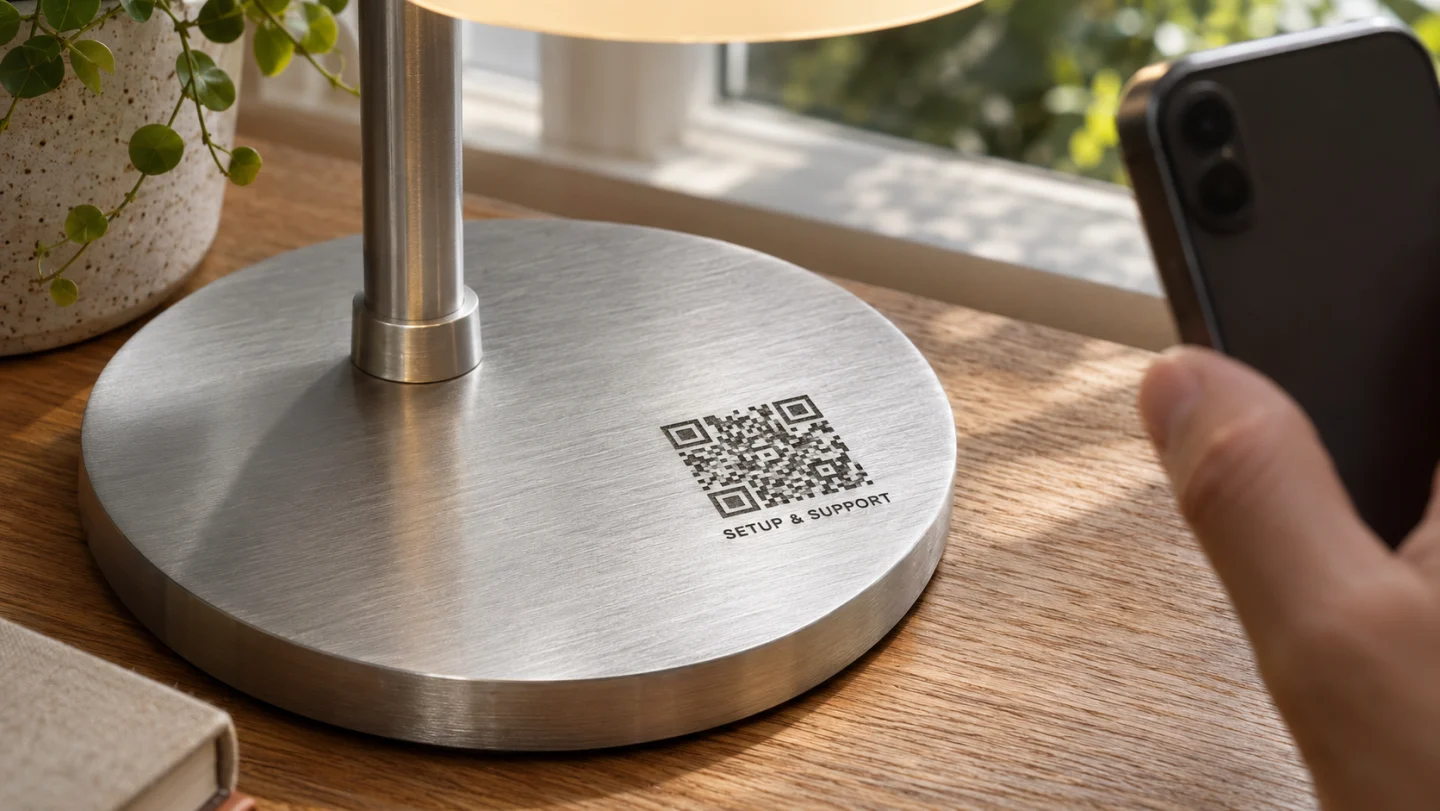
An engraved QR code gives customers a way to find the right manual, setup guide, or support page directly from the product. Put a CampaignLane short link in the QR code, and you can update where it sends people even after the code is engraved.
For example, if you move a desk lamp’s setup guide to a new help center, update the destination in CampaignLane. Customers can keep scanning the same code on devices you’ve already shipped.
1. Choose where the QR code should lead
Start with an existing page or online manual for the exact model you’re labeling. You can host it on your website, in your help center, or anywhere customers can open it without signing in. If you already have a PDF manual, you can link directly to it.
For a product support page, put Quick setup near the top, followed by the full manual, troubleshooting, and a way to contact support. Include the model number so customers can confirm they’ve landed on the right page.
2. Create a CampaignLane link for the product
Sign in to CampaignLane and create a managed short link. Set its destination to your manual or support page. Give it a name that makes it easy to find later, such as Desk Lamp L2 · Engraved QR.
Use one link per model if all units share the same instructions. If two versions need different manuals, give each version its own link. That lets you update the destination for one version without affecting the other.
Open the short link on your phone and check that it takes you to the right page.
3. Turn the short link into a QR code
Download the QR code for your link from CampaignLane, or paste the CampaignLane short link into a QR code generator. The code needs to contain that short link so you can change the destination later. Use the file format your engraver requests.
Add a short label beside it, such as Scan for setup & support or Scan for the user guide. If there’s room, include the short URL as well so customers can type it in. The QR code shown above is illustrative.
4. Test the engraving before producing a batch
Engrave one sample on the actual product material at the intended size. Keep a clear border around the code and test it with a few phones under the lighting customers are likely to encounter. Glossy finishes, curved surfaces, and low contrast can make a code that scans on screen harder to read on the device.
Check the whole path. Scan the engraved code, open the destination, and make sure you can find the manual or setup instructions on a phone.
5. Update the destination when the guide moves
If the manual gets a new URL, open the original link in your CampaignLane dashboard and update its destination. Then scan an engraved sample to confirm that it opens the new page.
Keep the original CampaignLane link active for as long as customers may use the product. That’s the address every engraved code points to.
Experienced Marketer and Technologist