 Illustration by CampaignLane
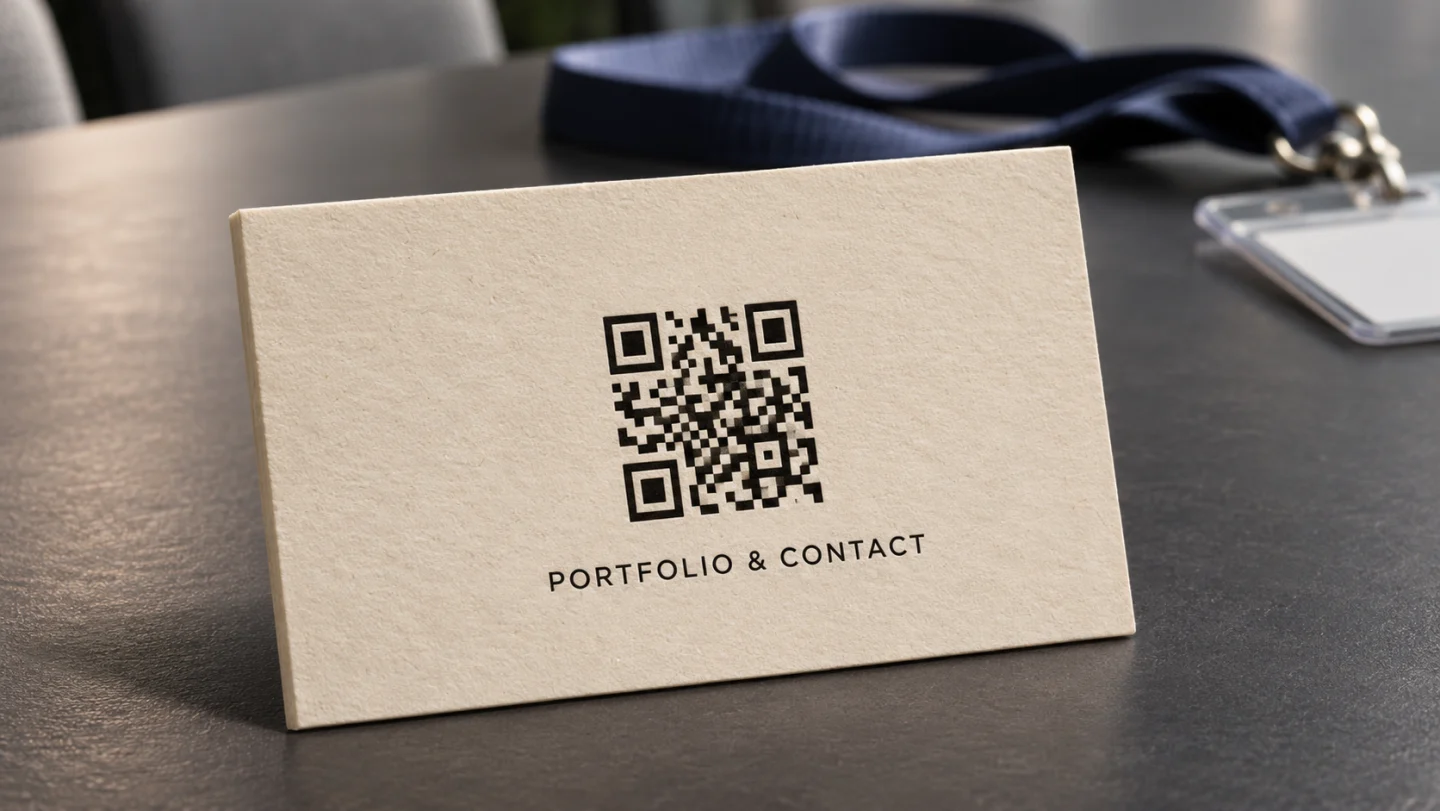
A QR code on your business card can open your LinkedIn profile most days and point to a landing page during a conference, trade show, or launch. To make that possible, print a QR code that contains a CampaignLane short link. You can change the destination in your dashboard while keeping the same cards.
When it makes sense to change the destination
Imagine you’re a freelance designer heading to a retail conference. Your LinkedIn profile is a good everyday destination because people can see what you do and connect with you. At the conference, you’re talking about a recent packaging project. A landing page with that case study and a Book a call button makes it easier for someone to follow up on the conversation.
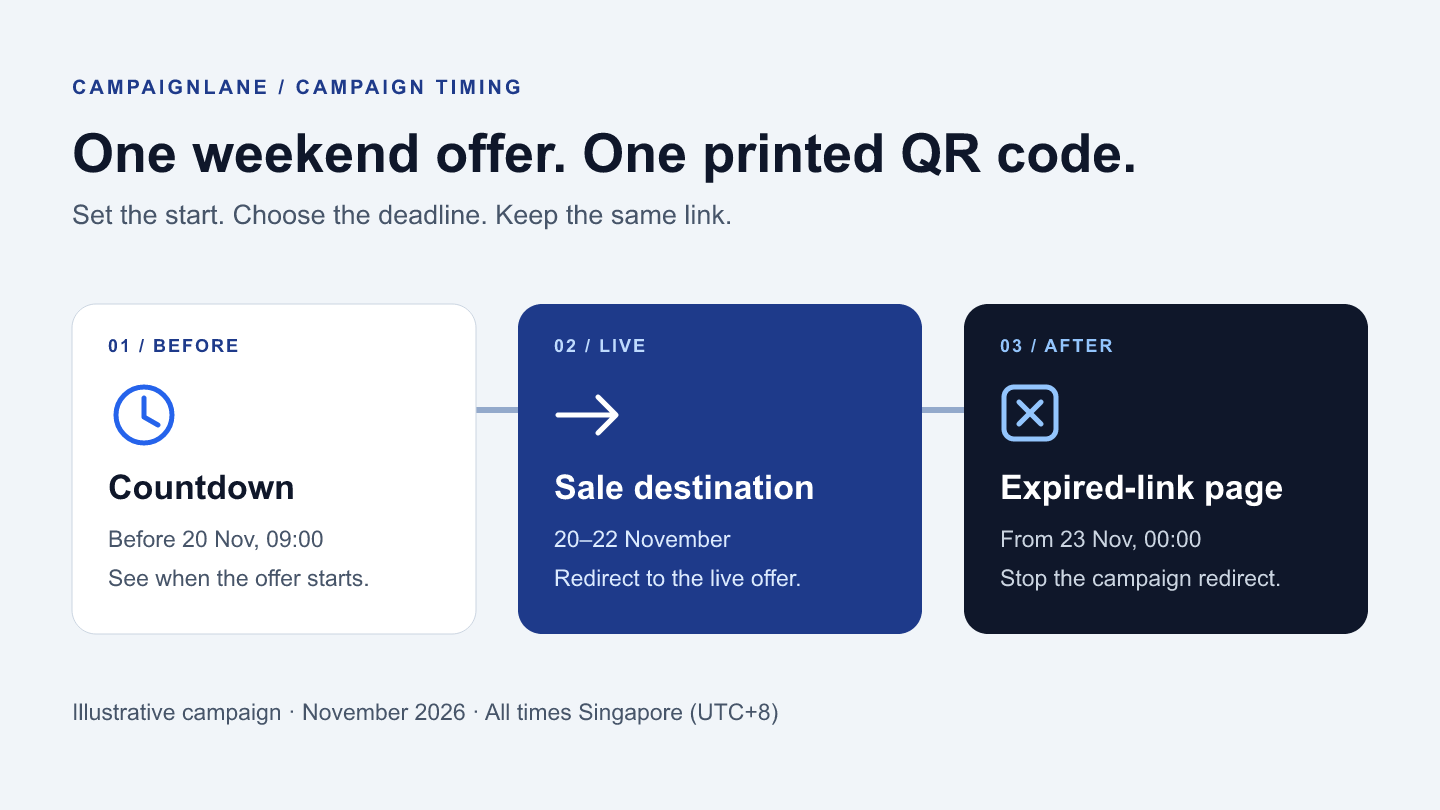
You can send scans to that page during the conference and switch back to LinkedIn once the follow-up window closes. The same approach works for a product demo, a talk with slides to share, or a new service you’re introducing at an event.
1. Set up your everyday link
Sign in to CampaignLane and create a managed short link. Set your LinkedIn profile URL as the destination and give the link a dashboard title such as Business card. Open the short link on your phone to see what a visitor can access. Some LinkedIn visitors may be prompted to sign in.
2. Put the short link in your business card QR code
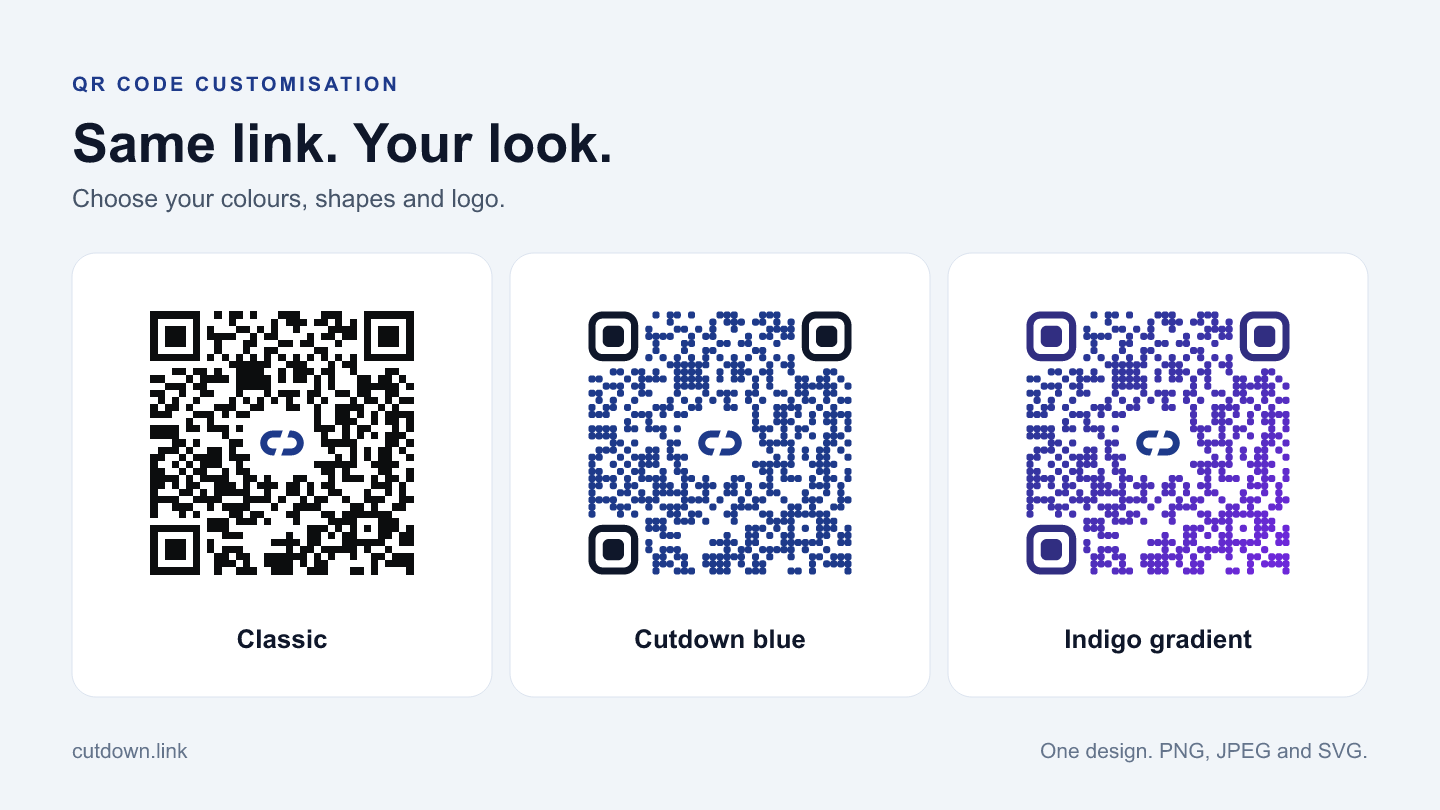
Download the QR code for your link from CampaignLane, or paste the CampaignLane short URL into a QR code generator. Using the short URL in the code lets you update its destination later.
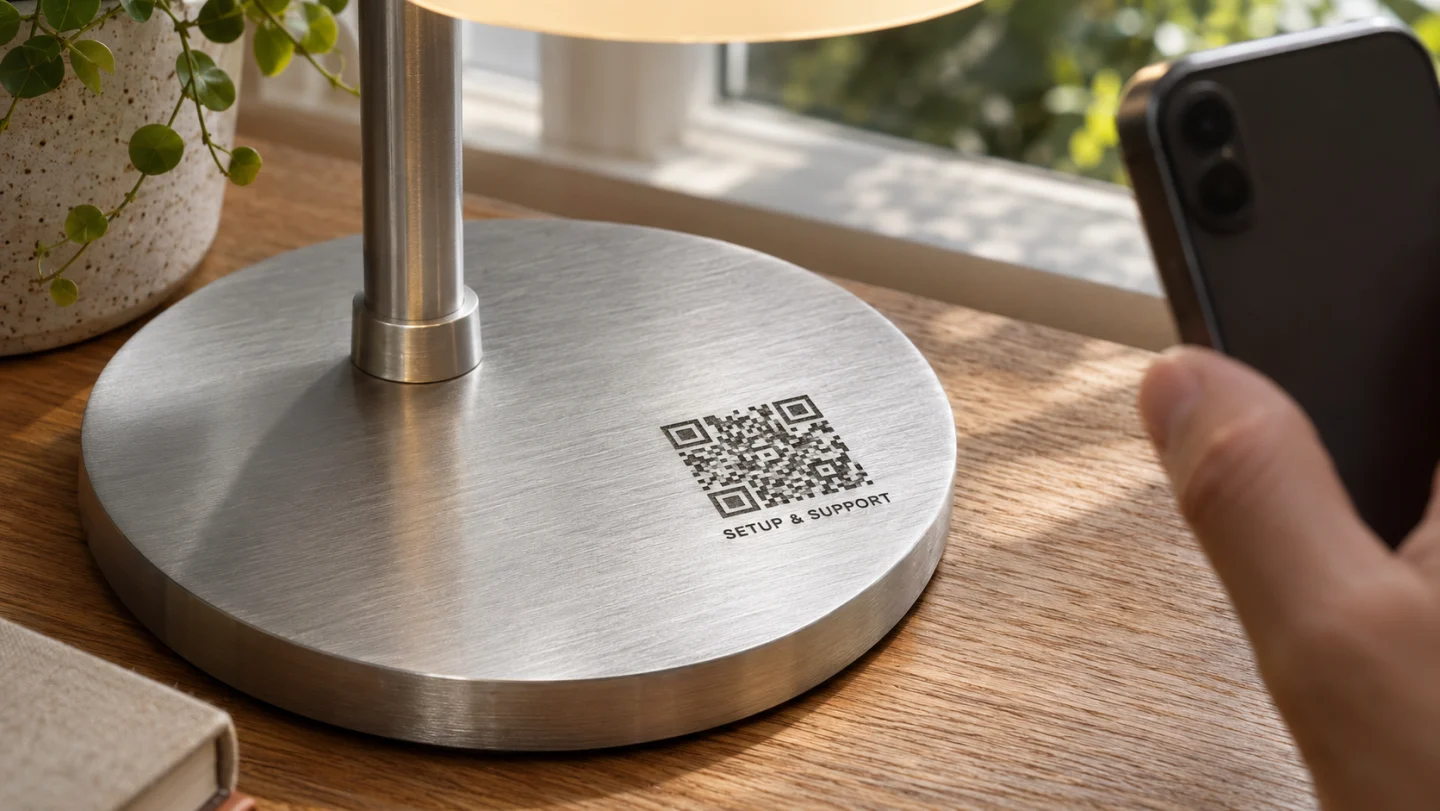
Use a label that will still make sense when the destination changes, such as Portfolio & contact. Leave clear space around the code and scan a printed proof at its final size before ordering a batch. The QR code in the illustration is an example.
3. Switch to your event landing page
Publish the landing page on your website or page builder. Give people the resource you discussed in person, a clear next action, and a way to contact you. If you’d still like people to connect on LinkedIn, add a link to your profile on the page.
Before handing out cards, open the original short link in your CampaignLane dashboard, replace the destination with the event page URL, and save. Scan a printed card and check that the page and its main action work on your phone.
The change applies to every card carrying that short link, including cards you’ve already handed out. If you want older cards to keep pointing to LinkedIn throughout the event, use a separate CampaignLane link and QR code for your event cards.
4. Switch back when the event follow-up ends
Keep the event page active long enough for people to scan the card after they get home. When you’re ready to return to LinkedIn, restore your profile URL in the same CampaignLane link and scan a card to confirm the change.
Experienced Marketer and Technologist