 Illustration by CampaignLane
The flyers are already at the printer. The offer starts in eleven days. And someone will almost certainly scan the QR code after it ends.
That is the problem Maya needs to solve for her shop’s weekend sale: one printed code, with a useful response before, during, and after the campaign.
This is a fictional example, designed to show how CampaignLane’s scheduling works. The shop, campaign, and dates are illustrative.
The story: a sale with a clear deadline
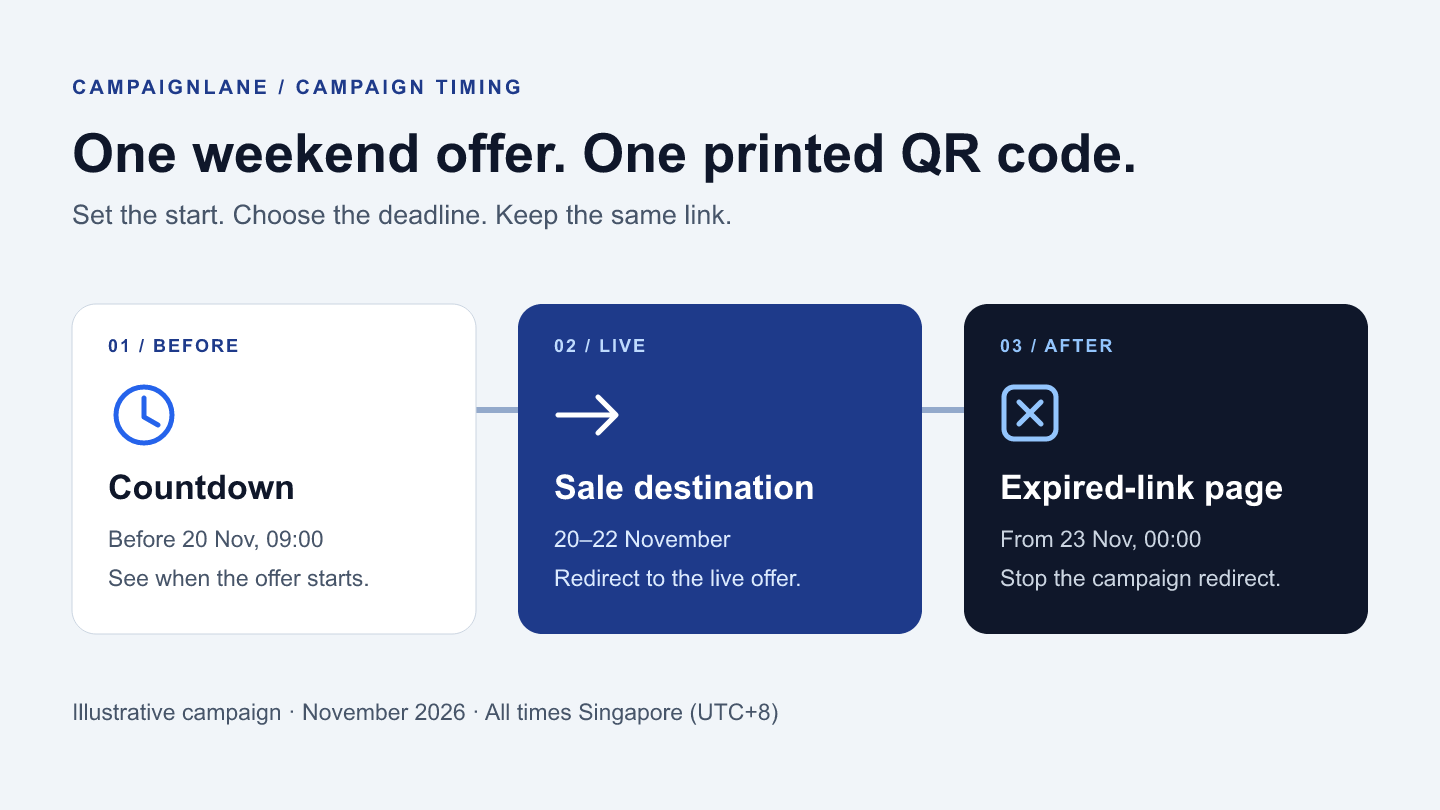
Maya runs a small homeware shop in Singapore. She is preparing a weekend promotion, starting at 09:00 on 20 November 2026 and ending at 00:00 on 23 November 2026, Singapore time.
The offer should be available throughout 20, 21, and 22 November. Setting the end to midnight at the start of 23 November makes that boundary explicit; “midnight on Sunday” is much easier to misunderstand.
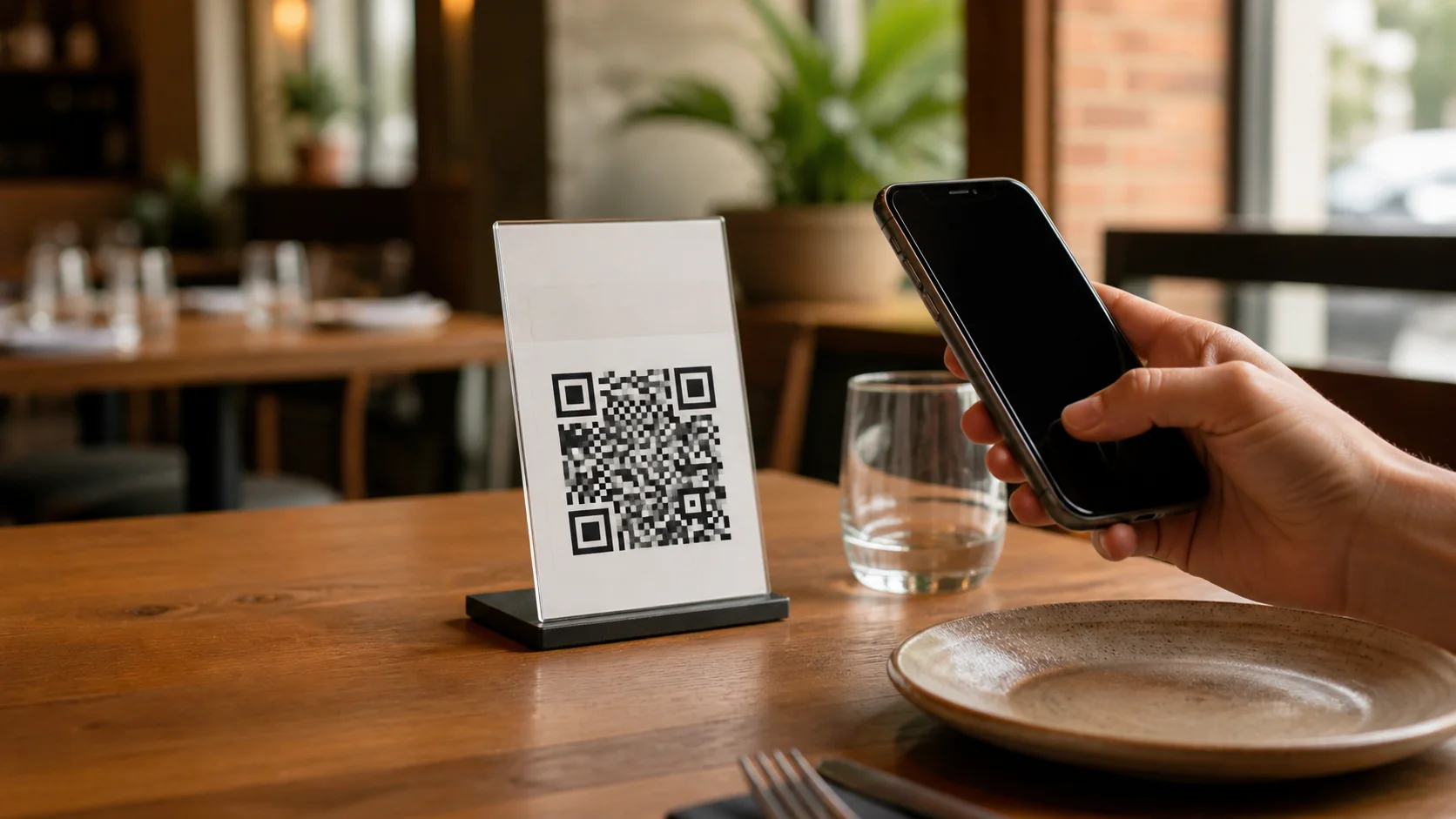
She plans to put the same QR code on counter cards and flyers. Some people will scan it as soon as the flyers arrive. Others will find one in a bag a week later. She wants to set the link’s availability in advance.
Before launch: the flyer can go out early
Maya signs in to CampaignLane and creates a managed link pointing to the sale page. She gives it a recognisable dashboard title: November weekend sale.
She opens the link editor, sets Starts to 20 November at 09:00 and Expires to 23 November at 00:00, then saves. Scheduling and expiry are Pro campaign controls; the first Pro year is currently free.
Her browser is set to Singapore time. She checks the time zone shown beside the date fields before saving. A colleague working in London would need to enter the equivalent local times in their own browser, rather than copy Maya’s clock times unchanged.
The downloaded QR code contains her stable llk.ad link, not the sale page’s full address. She adds it to the artwork and scan-tests a printed sample.
A customer scans a flyer on 18 November. Instead of reaching the sale through this link early, they see a live countdown to the scheduled start. Maya can distribute the materials before launch without manually switching the link on that morning.
During the sale: the same QR code reaches the offer
At 09:00 on 20 November, the active link begins redirecting to its saved destination. Someone already watching the countdown is automatically sent back through the link when the timer reaches zero.
There is no new QR code to print and no URL to replace in an email or social post.
On the second day, Maya needs to move the sale to a different landing page. She edits the destination in her dashboard. Future visits through the same link reach the updated page; the flyers keep working. This is a manual destination update, separate from the scheduled start and expiry.
She can also review aggregate click counts to see how often the campaign link redirected. Those counts do not establish purchases or conversion rates; she checks her shop’s analytics for sales results.
After the deadline: the redirect stops
At 00:00 on 23 November, the link reaches its expiry date. This is the cutdown: the point at which the campaign link stops sending people to the offer.
A customer scanning a leftover flyer on 24 November sees CampaignLane’s expired-link page. The QR image has not vanished, and the link record has not been deleted. The response to a new visit has changed.
Expiry does not automatically send that customer to Maya’s regular shop homepage. CampaignLane shows its expiry page; a different destination would require a separate dashboard change.
It also does not revoke access to the original sale page, cancel discount codes, or prevent someone using a destination URL they already know. Maya configures the promotion deadline in her shop’s checkout as well. A campaign-link deadline controls redirects, not the rules of the destination website.
Set up your own campaign window
- Create the link while signed in. An anonymous quick link cannot be edited later. Use a managed link for scheduling and expiry.
- Open the link in your dashboard. Add a title that makes the campaign easy to recognise.
- Set Starts and Expires. Check the displayed browser time zone and enter an end time later than the start. Either date can be left unset if you only need the other control.
- Save before publishing. Check the saved settings, destination, and QR code before distributing the link.
- Test the visitor journey. Before launch, check the countdown. For a full rehearsal, use a separate test link with a short future window, then visit it before, during, and after that window.
- Enforce the offer separately. Match the landing page and checkout deadline to the campaign window.
These stages assume the link is otherwise available. A manual pause or security block can prevent a live campaign from redirecting; scheduling does not override those controls.
Decide whether you need expiry at all
Maya’s sale benefits from a firm stop. A permanent menu, product guide, or event information page might be more useful with an ongoing destination that you update instead.
Use an expiry date when you want a particular campaign link to stop redirecting after a deadline. Leave it unset when the printed code should remain an ongoing route to current information.
For more ideas, explore practical uses for dynamic links, or learn how to prepare a branded QR code for print.
Frequently asked questions
- What is a cutdown or expiry date?
- It is the time after which the campaign link stops redirecting to its destination. Visitors see an expired-link page instead. The link record and QR image are not deleted by reaching that time.
- What do visitors see before a scheduled start?
- They see a live countdown page. When the start time arrives, that page automatically continues through the campaign link. An active link then redirects to its saved destination.
- Does expiring the link end the offer on my website?
- No. It stops redirects through that CampaignLane link. You must separately enforce offer deadlines, discount codes, checkout rules, and access restrictions on the destination website.
- Can the link automatically switch to a different page after expiry?
- No. Expiry shows CampaignLane’s expired-link page; it does not schedule a second destination. A destination change is a separate dashboard edit.
- Which time zone do the date fields use?
- The editor uses your browser’s local time zone and displays the detected zone alongside the scheduling controls. Check it before saving, especially if the campaign targets another country.

Experienced Marketer and Technologist